Styles
Summary
FLOW AI's advanced Styles system provides comprehensive visual customization for image generation workflows. Enhance text-to-image and image-to-image processes with professionally curated aesthetic filters and custom style training capabilities, ensuring your outputs perfectly align with your artistic vision and brand identity.
All style LoRAs are fine-tuned on a dedicated base model for optimal performance and consistency.
Predefined Style Library
FLOW AI offers a comprehensive collection of professionally curated styles, engineered for exceptional quality and consistent results across all image generation workflows. These advanced style filters transform aesthetics, color palettes, mood, tone, and content composition to achieve your desired visual outcomes.
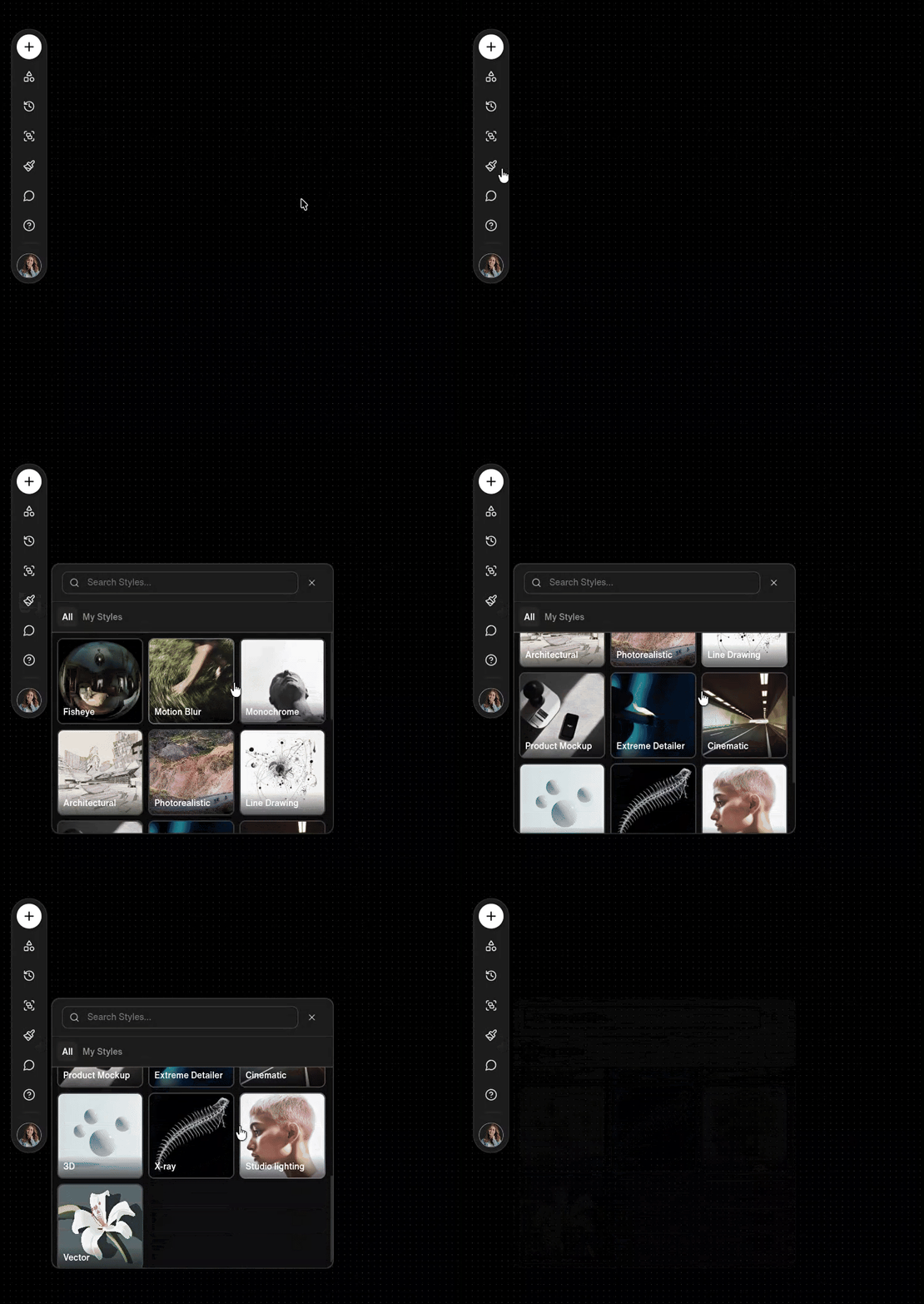
Available Style Categories
Choose from our expanding library of specialized styles, each optimized for specific creative applications:
Fisheye
_7P7sf0vLIb.avif?updatedAt=1757486728964)
Depth cues, model shading, digital flesh. Not about real-world cameras—more like Blender renders. LoRA captures things like subsurface scattering, ambient occlusion, baked shadows. Geometry feels synthetic, form takes priority over texture.
Motion Blur
_qfmjW7SiX.avif?updatedAt=1757486733607)
Speed encoded into the image. Simulates long exposure or rapid motion. Directional streaking, trailing forms. Often used in cyberpunk, dance, or action-heavy outputs. The blur is compositional—it pulls the eye.
Monochrome
_ZOTrP_ZlQU.avif?updatedAt=1757486734078)
One hue, infinite values. LoRA removes color information, but enhances detail through contrast. Could be charcoal, cyanotype, or film noir. Emphasizes shape, light, emotion—less distraction, more weight.
Architectural
_x_pa2sbLAd.avif?updatedAt=1757486734258)
Structured, rectilinear, scale-aware. Linearity dominates—LoRA learns blueprints, elevations, orthographic projection. Often defaults to modernism unless nudged. Useful for clean geometry and visual order.
Photorealistic
_G5ZgpUOwUb.avif?updatedAt=1757486736196)
As close to lens-based capture as possible. High fidelity textures, correct shadows, plausible lighting, skin imperfections. LoRA draws on real-world datasets and DSLR optics. Often pairs well with materiality prompts.
Line Drawing
_nbFseICQq5.avif?updatedAt=1757486736155)
Gesture over mass. Black ink, pencil, or digital stroke. Negative space plays a role. LoRA reduces values to contours—ideal for diagrams, instructions, or ideation sketches.
Product Mockup
_TKeDveWDzX.avif?updatedAt=1757486679411)
Perfect surfaces. Rendered packaging, floating objects, top-down minimal backdrops. LoRA learns from ecommerce, product design, and pitch decks. Prioritizes clean, centered, desirable.
Extreme Detailer
_ENjMszcEd.avif?updatedAt=1757486676622)
Texture fanatics. Zoom in: every pore, crack, wrinkle. This LoRA overfits on microstructures—hyperreal to the point of obsession. Can verge on the grotesque if unchecked.
Cinematic
_ZJ6YDeCWl.avif?updatedAt=1757486677079)
Frame as story. Aspect ratio matters. Lighting dramatizes. Color grading carries tone. LoRA may reflect film stock, composition theory, or golden hour. Meant for stills that feel like scenes.
3D
_qkR8ufrybX.avif?updatedAt=1757486728408)
Depth cues, model shading, digital flesh. Not about real-world cameras—more like Blender renders. LoRA captures things like subsurface scattering, ambient occlusion, baked shadows. Geometry feels synthetic, form takes priority over texture.
X-Ray
_Ivns-5a-JX.avif?updatedAt=1757486728560)
Imagined transparency. Subjects are peeled open—bones, wiring, inner systems exposed. A LoRA that trains on radiographic motifs but fakes the effect across arbitrary subjects. Useful for metaphor: revealing the hidden.
Studio Lighting
_c00t-sSPM.avif?updatedAt=1757486733811)
Controlled shadows, sharp highlights. Key light, fill light, rim light—classic three-point setup. Every pixel feels considered. LoRA adapts subject matter to sit inside a constructed scene, often with high contrast and shallow depth of field.
Vector
_Hq2d9y0bP.avif?updatedAt=1757486735188)
Infinitely scalable. Line clarity, color fields, no noise. Think Figma assets, logo packs, poster icons. A LoRA that favors SVG-like outcomes. It flattens depth, prioritizes readability.
Each style intelligently modifies core image attributes including aesthetics, composition, mood, tone, and content to achieve your desired creative vision.
2. Custom Style Training
FLOW AI offers custom style training for users who want personalized creative control. You can upload your own reference images and train a model to match your individual visual style.
2.1 How Custom Style Training Works

- Upload Reference Images – Select images that capture the visual qualities you want to replicate. Click the "Create Style" button to begin training.
For best result, a minimum of 2 images are required to start the training process.
-
Training Process – When the training is done, you'll get a notification.
-
Access Your Custom Style – Your personalized Style will appear both in the left toolbar and above the image block alongside the default style options. This allows you to easily select and apply your custom Style within your projects.